How Do You Set Up GA4 Lead Tracking So Every Lead Has a Source?
How I set up GA4 so every lead reaches the CRM with its source: the lead event, UTM naming, hidden form fields, an AI referral channel and a test plan.
 Joshua Jackai
14 min read
Joshua Jackai
14 min read
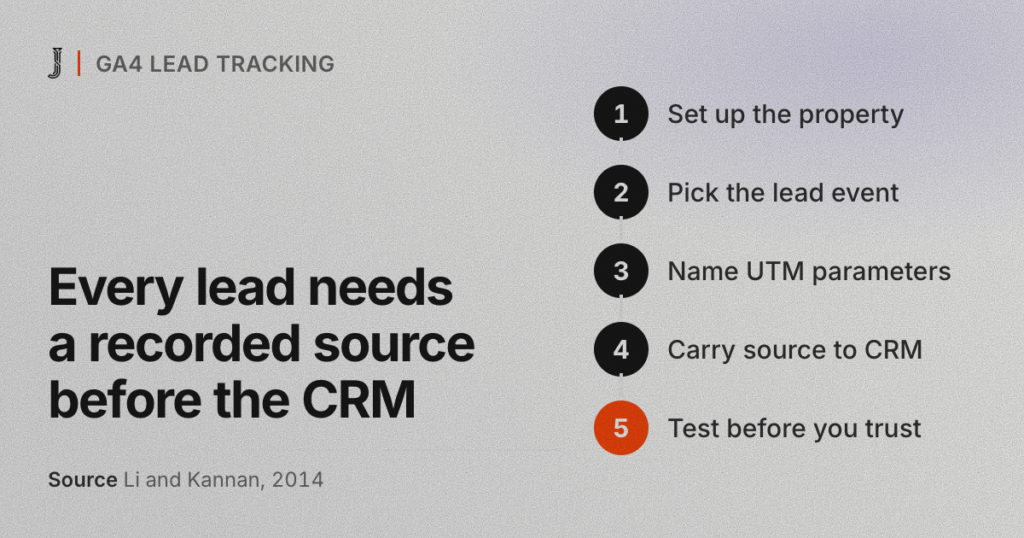
GA4 lead tracking is the setup that makes every form on your website record where the person came from, then hands that answer to your CRM along with the lead. Most installs I open on client sites stop halfway. The Google tag is on the page. Form submissions get counted. The source never reaches the contact record, so nobody can say which channel sent the lead.
Picture the person who feels this first. A head of marketing at a 40-person consulting firm is asked in the Monday meeting which channel produced last quarter’s pipeline. GA4 shows her a count. The CRM shows her names, each with a lead source someone typed in by hand, weeks late. Neither screen answers the question.
This isn’t a reporting problem. It’s a wiring problem, and it gets fixed in a set order. Below is the order I use for GA4 lead tracking on WordPress and HubSpot sites. Every GA4 menu path here matches Google’s help pages as of October 2026.
In this guide
What does GA4 lead tracking need to record?
Every lead needs four things recorded: the fact that a lead happened, where the person first came from, which page they converted on, and a connection that attaches all three to the contact in your CRM instead of leaving them in a separate GA4 report. Miss any one and the chain breaks at that link.
On my lead attribution method page I list where B2B tracking usually fails: links go out without UTM parameters, the form drops the tags before they reach the CRM, nothing records the converting page, and AI referrals get filed as direct. Fixing all four is about two weeks of work and no design change.
First touch matters because buyers rarely convert on the visit that found you. Customers reach a firm through many touchpoints across several channels and media (Lemon and Verhoef, 2016). Someone finds you through a LinkedIn post, returns through Google a week later, and converts from a bookmark. Keep only the last source and the post gets no credit.
GA4 lead tracking that stops at a count can’t name a person, and it shouldn’t. Google’s policy bars sending personal information such as email addresses into Analytics, so the named record lives in the CRM. GA4 shows which channels work. The CRM shows the lead source on every contact. You need both, joined by the same values.
How do you set up the GA4 property and data stream?
Good GA4 lead tracking starts with a clean property. If you already have one, check it against these steps in Google’s current interface.
- Create the property. In Admin, click Create, then Property. When GA4 asks how you plan to use it, pick the objective for generating leads, so the default reports include the lead generation set.
- Add a web data stream. In Admin, under Data collection and modification, click Data streams, then Add stream, then Web.
- Keep the automatic events on. On the stream page, leave the measurement switch under Events turned on. It records page views, scrolls, outbound clicks, file downloads and form interactions without code.
- Install the Google tag once. Paste it right after the opening head tag on every page, or add it through Google Tag Manager or your CMS. Never both, or every count doubles.
- Define internal traffic. On the stream page, open Configure tag settings, click Show more, then Define internal traffic, and add your office IP addresses. Then open Data filters, click Create Filter and choose Internal Traffic.
- List unwanted referrals. In the same tag settings, click List unwanted referrals and add any booking or payment tool that sends people back to your site, or it shows up as the source of your leads.
- Raise data retention. Under Data collection and modification, open Data retention and set event data to 14 months if it shows 2. Google notes this only affects explorations and funnel reports, which is where you’ll trace a lead’s path.
Run the internal traffic filter in Testing state for a few days before you switch it to Active. An active data filter is permanent. Anything it excludes is never processed, and you can’t get it back.
Which event should count as a lead?
The first decision in GA4 lead tracking is what counts, and not every form is a lead. The automatic form_submit event records form submissions from any form: the newsletter box, the site search, the job application. On sites I audit, counting all form submissions as leads is the most common reason GA4 shows more leads than the CRM got. That’s my experience, not a published benchmark.
Google’s recommended event for this job is generate_lead, which fires when someone submits a form or a request for information. It takes an optional lead_source parameter, plus value and currency if you price a lead. Mark it as a key event, which is what GA4 now calls a conversion. Pick how to fire it by how your form confirms a submission.
| How the form confirms | How to fire generate_lead | What breaks it |
|---|---|---|
| Sends the visitor to a thank-you page | Create the event in GA4 without code, from page_view on that URL | Bookmarked or indexed thank-you pages |
| Shows a message on the same page | Push the event from the form plugin’s success hook, or a Tag Manager trigger | A plugin update that renames the success message |
| Embedded from another platform, such as HubSpot or a booking widget | Use that platform’s own submit callback or GA4 connection | A form in a frame on another domain, which your tag can’t see |
For the no-code route: in Admin, under Data display, click Events, then Create event. Name it generate_lead, switch on Mark as key event, choose Create without code, pick page_view, enter the thank-you page URL, and click Create. Then set that page to noindex, so search visitors can’t trigger it.
GA4 also asks for a counting method: once per event, which Google recommends, or once per session. For a lead form I pick once per session, because a nervous double click on Submit shouldn’t become two leads. If you send lead_source, register it under Data display, Custom definitions, as an event-scoped custom dimension. Google notes it takes 24 to 48 hours to show in reports.
How should you name your UTM parameters?
UTM parameters are the half of GA4 lead tracking that happens outside GA4: the tags on each link that say which campaign sent the click. Google’s rule is to always set utm_source, utm_medium and utm_campaign. A tagged link looks like this: yoursite.com/guide?utm_source=linkedin&utm_medium=social&utm_campaign=hiring-guide.
Values are case sensitive. GA4 files LinkedIn and linkedin as two different sources, and your report splits in two. The fix is a written, all-lowercase naming convention that everyone who ships a link follows. Here is the shape I start clients on.
| Where the link goes out | utm_source | utm_medium |
|---|---|---|
| Unpaid LinkedIn posts | social | |
| Paid LinkedIn ads | paid_social | |
| Monthly newsletter | newsletter | |
| Partner site or podcast show notes | the partner’s domain | referral |
| QR code on event material | the event name | qr |
Look at the QR row. GA4 has no default channel for a medium called qr, so those visits land in Unassigned unless you add a QR channel to a custom channel group. Wherever one fits, use the medium values Google’s default channel rules expect: email, social, referral, and anything starting with paid for ads.
Never put UTM parameters on links between pages of your own site. On my projects that rule has no exceptions. An internal tag tells GA4 the visit came from your own campaign, which hands the credit for the lead to you instead of the channel that brought the person in.
How do form submissions carry the lead source into your CRM?
This is the link most GA4 lead tracking setups skip. GA4 knows the source of a session. Your CRM knows the person. Unless the form passes the source across when it’s sent, form submissions arrive in the CRM without one, and someone types Website into a dropdown weeks later. The fix has three parts, and none needs a redesign.
- Capture on arrival. A small first-touch script stores the original UTM parameters, the referring site, the landing page and any ad click ID in the visitor’s session. The source survives a visitor who reads three pages before filling anything in.
- Pass on submit. Hidden fields on every form carry those values into the CRM with the lead record. In HubSpot, each hidden field maps to a contact property you create for it.
- Record the converting page. Store the page the form sat on, so the guide or case study that did the work gets credit too.
Keep both touches, so the lead source travels with the person from first visit to form. GA4 shows the same split in two reports: First user source in User acquisition, and Session source in Traffic acquisition. Report first and last touch side by side instead of letting one model choose for you.
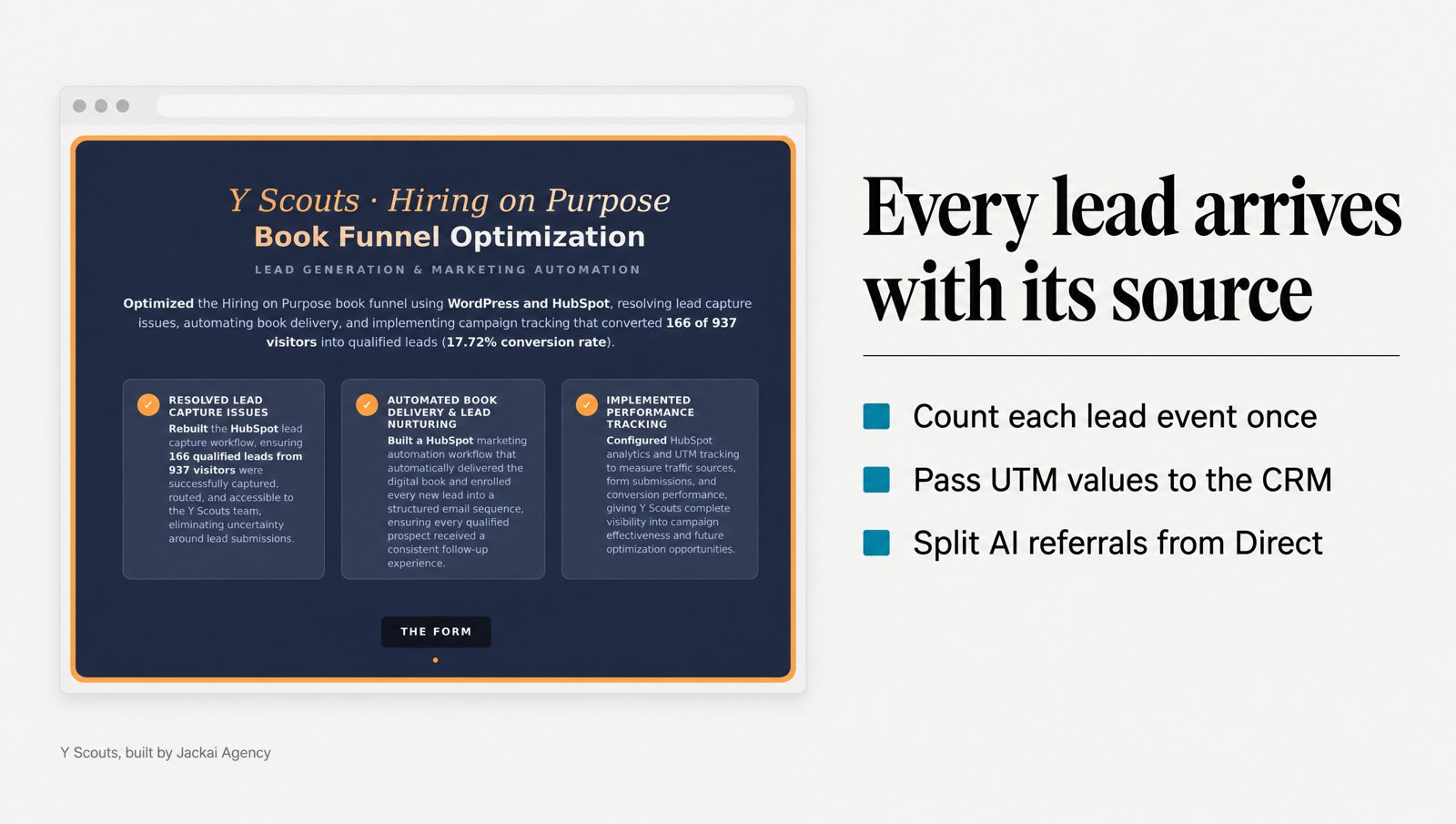
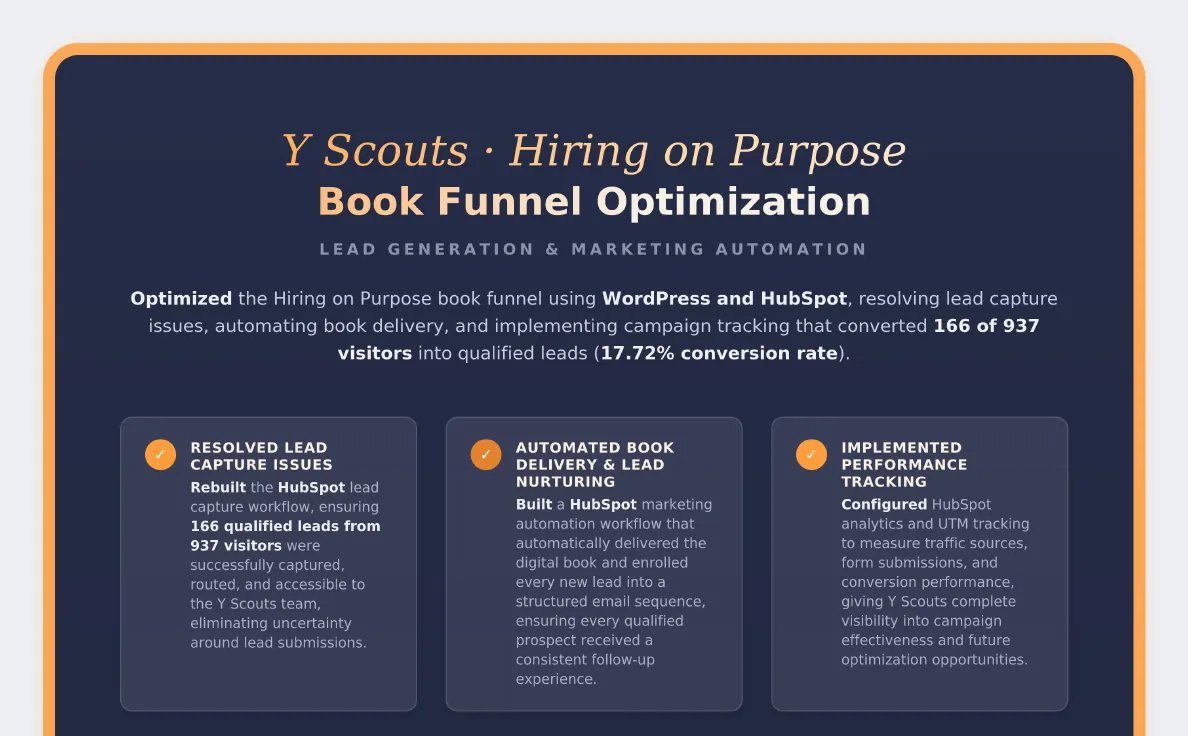
Y Scouts, an executive search firm in Scottsdale, Arizona, shows why. Its lead pages had no campaign tracking, so the founder couldn’t tell which channel produced a lead. I rebuilt the Hiring on Purpose book funnel so the form, the delivery email, the follow-up workflow and UTM tracking run as one HubSpot flow. A submission now becomes a contact with a source.
That funnel converts visitors to leads at 17.7%, 166 of 938, read from the client’s own HubSpot dashboard rather than from GA4. In Q3 2025, with nothing new filmed, the wider content work contributed to inbound MQLs rising from 17 to 30. The tracking didn’t cause that rise. It’s how the founder could see where the new leads came from. The full build is in the Y Scouts case study.
How do you see AI referrals in GA4?
AI referrals are the newest gap in GA4 lead tracking. GA4’s default channel group now has an AI Assistant channel. Google’s documentation says it covers visitors from sources like ChatGPT, Gemini, DeepSeek, Copilot or Grok, and it leaves out Google’s own AI Overviews and AI Mode.
Two gaps remain. Perplexity isn’t on Google’s list, so its visits land in Referral. And an assistant that sends no referrer shows up as Direct; my lead attribution setup infers those from landing page and session pattern, labeled probable, not certain. For the Perplexity gap, build a custom channel group.
- In Admin, under Data display, click Channel groups, then Create new channel group. GA4 starts you from a copy of the default group.
- Click Add new channel and name it AI assistants.
- Add a condition on Source, choose matches regex, and list the assistants, for example chatgpt|openai|perplexity|claude|gemini|copilot|deepseek|grok.
- Click Reorder and drag AI assistants above Referral, because GA4 files each visit in the first channel it matches. Then click Save group.
Google says custom channel groups apply to reports retroactively, and standard properties allow two of them. Add the same AI channel to your CRM’s lead source picklist, so an AI-referred lead carries one label in both places.
Generative engines answer by summarizing several sources, and site owners have little control over when their pages appear (Aggarwal et al., 2024). So give those leads their own line. My free AI Visibility Report checks whether assistants mention your firm at all, in 24 hours.

How do you test GA4 lead tracking before you trust it?
Test GA4 lead tracking the way a lead would arrive, then follow the record into the CRM. Here’s my checklist before I call a setup done.
- Open a tagged link. Add test UTM parameters to your homepage URL: ?utm_source=test&utm_medium=email&utm_campaign=tracking-check. Use a private window on your phone’s mobile data, so the internal traffic filter doesn’t hide you.
- Turn on debug mode. Connect the site in Google Tag Assistant, then open Admin, Data display, DebugView. Accept analytics cookies, or DebugView stays empty.
- Browse, then convert. Visit two other pages, then submit the form. The source should still read test.
- Check Realtime. The Event count by Event name card should show generate_lead within a minute or two.
- Check the CRM record. Every lead source field on the new contact should hold a value: test, email, tracking-check, plus the landing and converting pages.
- Check the thank-you URL. If the address contains the person’s email or name, fix the form before launch.
Google requires page URLs and their parameters to be free of personal information, and a thank-you page with ?email= in the address sends that address with every page view. GA4 can redact email addresses on a best-effort basis. The reliable fix is a form that never puts them there.
Where does GA4 lead tracking break after launch?
A GA4 lead tracking setup that passes on day one can drift by month three. These are the failures I find most often in audits.
- Consent banners. Visitors who decline analytics cookies are partly or fully missing from GA4, and how many accept depends on the banner. In field experiments with more than 80,000 users, banner position, the type of choice and nudging all changed what people did (Utz et al., 2019).
- Duplicate tags. A WordPress plugin and a theme setting both adding the Google tag, which doubles page views and leads.
- Untagged links you own. Redirects that drop everything after the question mark, plus email signatures, PDF guides and podcast bios with no UTM parameters. They count as referral or direct.
- Forms rebuilt by someone else. A new form plugin that drops the hidden fields. Form submissions keep arriving without a source, and nobody notices for a quarter.
- The form itself. Tracking a form people abandon only measures the abandonment more precisely. In an eye-tracking study, forms rebuilt to usability guidelines were finished faster with fewer failed submits (Seckler et al., 2014).
GA4 and the CRM will never match exactly. Treat the CRM as the count of people and GA4 as the map of where traffic came from. On the sites I’ve worked on, a small, steady gap is normal. A growing gap usually means one of the failures above.
What should a weekly lead source report show?
GA4 lead tracking only pays for itself if someone reads the result. I use one page, grouped by channel, with three numbers each: leads, qualified leads and closed deals. A report that needs scrolling doesn’t get read in a meeting.
Leads come from form submissions that reached the CRM. Qualified and closed come from the CRM alone, because GA4 never sees what sales does after the form. Google offers events for those stages, such as qualify_lead, but most firms I work with report them straight from HubSpot.
Then set attribution with open eyes. Under Data display, Events, Attribution settings, GA4 offers data-driven and last-click models. Studies of multichannel data found that last click hands out credit very differently from models that follow the whole path (Li and Kannan, 2014; Anderl et al., 2016). So don’t let one model settle a budget argument. When first and last touch point at different channels, that difference is the finding.
Should you set up GA4 lead tracking yourself or hand it off?
You can do all of this yourself. The GA4 lead tracking steps take an afternoon. The slow parts sit outside GA4: agreeing a naming convention for UTM parameters, adding hidden fields to every form, mapping them to CRM properties, and rechecking forms after plugin updates.
Hand it off when the site has more than a few forms, when someone else runs the CRM, or when leadership wants the report next month. Either way, here is what I wouldn’t do.
- Count form_submit as the lead event.
- Rely on a hand-picked dropdown as the only record of where a lead came from.
- Add a second analytics tool before the first one is wired end to end.
- Redesign the site to fix a tracking problem. Tracking runs on the site you already have.
That last point is how I run Lead Source Reporting, which is GA4 lead tracking done for you: two weeks from kickoff, CA$2,600, fixed quote, no design work. You get forms on the pages that already get traffic, plus GA4 and UTM parameters wired into your CRM. First and last touch sit side by side, AI referrals are split out of Direct, and a weekly one-page report names the channel behind each lead.
I record your current lead count and mobile conversion rate at the start, so every week after has something to compare against. If you’d rather talk it through first, book a 30-minute call. We’ll measure where your leads come from today, and you leave with that number whether or not you hire me.
Sources
Peer-reviewed research
- Aggarwal, P., Murahari, V., Rajpurohit, T., Kalyan, A., Narasimhan, K., and Deshpande, A. (2024). GEO: Generative Engine Optimization. Proceedings of the 30th ACM SIGKDD Conference on Knowledge Discovery and Data Mining, 5-16. https://doi.org/10.1145/3637528.3671900
- Anderl, E., Becker, I., von Wangenheim, F., and Schumann, J. H. (2016). Mapping the customer journey: Lessons learned from graph-based online attribution modeling. International Journal of Research in Marketing, 33(3), 457-474. https://doi.org/10.1016/j.ijresmar.2016.03.001
- Lemon, K. N., and Verhoef, P. C. (2016). Understanding customer experience throughout the customer journey. Journal of Marketing, 80(6), 69-96. https://doi.org/10.1509/jm.15.0420
- Li, H., and Kannan, P. K. (2014). Attributing conversions in a multichannel online marketing environment: An empirical model and a field experiment. Journal of Marketing Research, 51(1), 40-56. https://doi.org/10.1509/jmr.13.0050
- Seckler, M., Heinz, S., Bargas-Avila, J. A., Opwis, K., and Tuch, A. N. (2014). Designing usable web forms: Empirical evaluation of web form improvement guidelines. Proceedings of the SIGCHI Conference on Human Factors in Computing Systems, 1275-1284. https://doi.org/10.1145/2556288.2557265
- Utz, C., Degeling, M., Fahl, S., Schaub, F., and Holz, T. (2019). (Un)informed consent: Studying GDPR consent notices in the field. Proceedings of the 2019 ACM SIGSAC Conference on Computer and Communications Security, 973-990. https://doi.org/10.1145/3319535.3354212
Industry and vendor data (not peer reviewed)
- Google Analytics Help Center and Google for Developers GA4 documentation, checked 4 October 2026: property and data stream setup, key events and counting method, recommended events (generate_lead), campaign URLs, default and custom channel groups, unwanted referrals, internal traffic, data retention, DebugView, custom dimensions, attribution settings, and personal information rules.